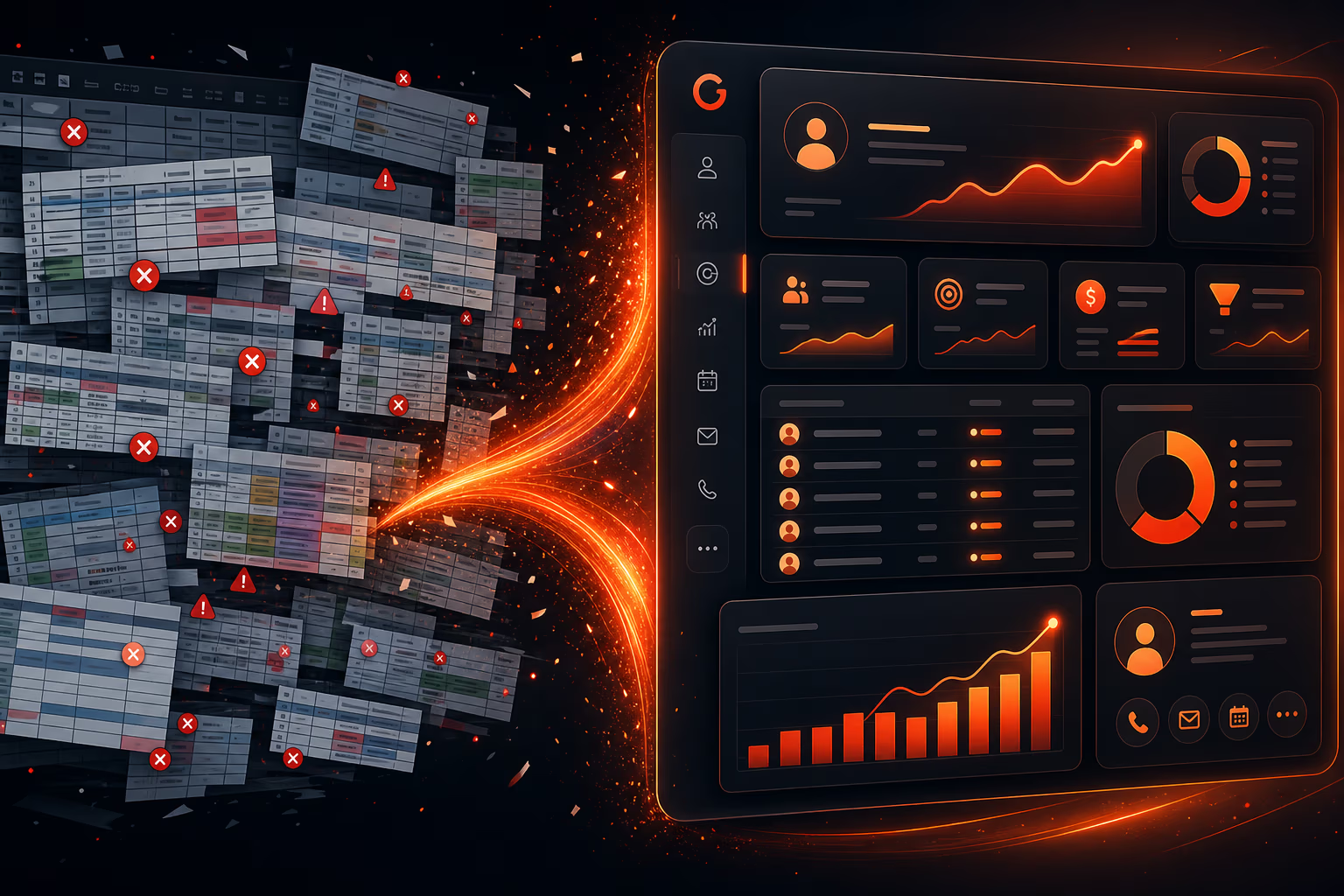
Admin Panel Design: Essential Features for Real Business Dashboards
A practical guide to designing admin panels that business users actually need. Features include user management, security, automation, and more.
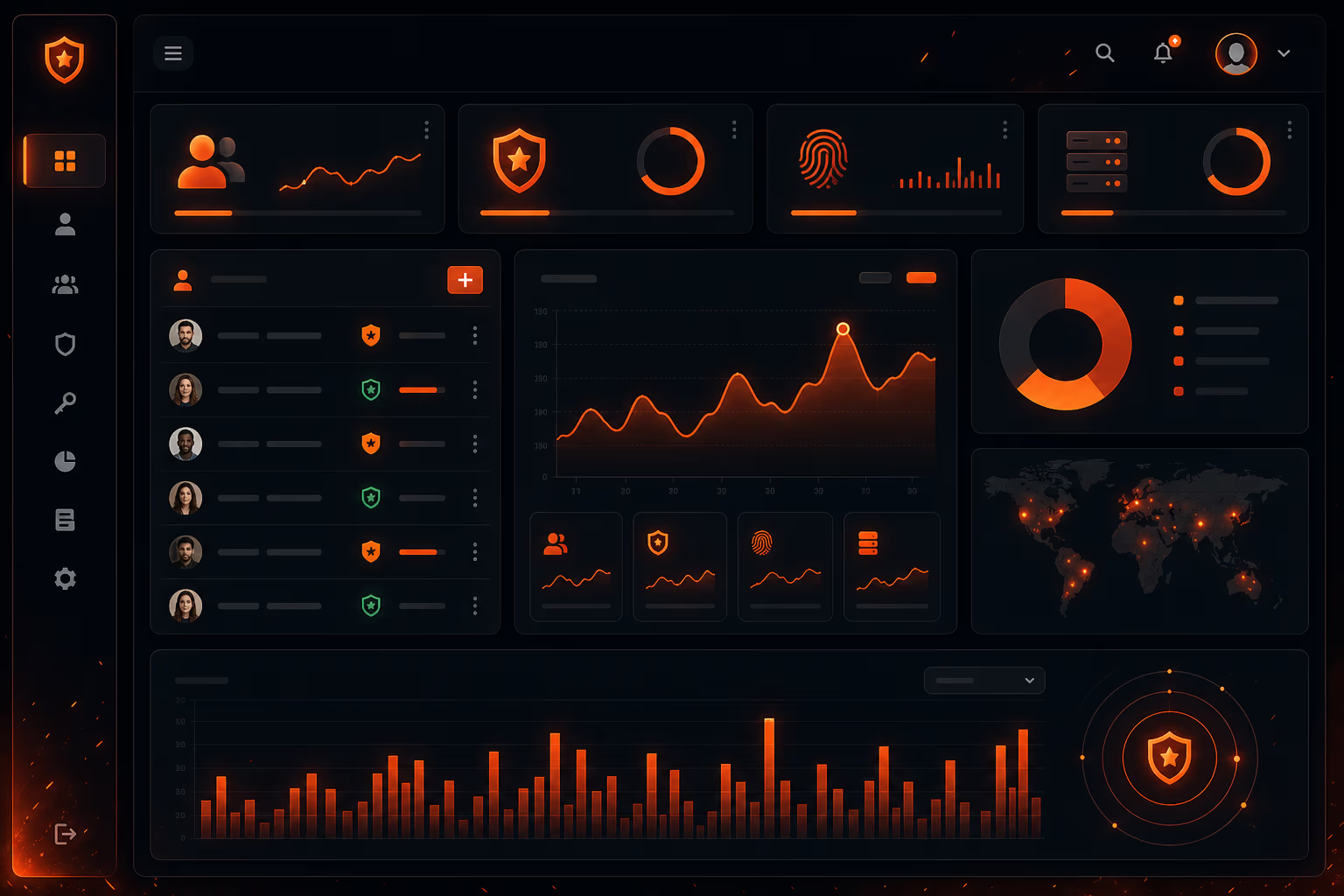
Building an admin panel that actually serves a business is harder than it looks. We've seen dozens of dashboards that look great in mockups but fall apart once real users start managing users, security, and compliance. At DigiForge, we've learned that the difference between a dashboard that gets used and one that gets ignored comes down to a handful of core features. In this article, we'll walk through what every real business dashboard needs — drawing on lessons from tools like the Google Admin Console and Microsoft 365 admin center, and from our own builds.
User Management: The Foundation
Any admin panel worth its salt lets you manage users centrally. That means creating, editing, suspending, and deleting accounts — and doing it in bulk when needed. The Google Admin Console allows administrators to manage users across Workspace, Chrome, ChromeOS, and Android from one place [1]. Similarly, Microsoft 365's admin center lets you add users, reset passwords, and manage devices [3]. These aren't just checkboxes; they're daily operations for IT teams.
In our builds, we always include a user list with search, filters, and batch actions. But we go a step further: we add role-based access controls (RBAC) baked into the UI so you can assign permissions without writing custom code. A common mistake is to treat all administrators as equal. Real business dashboards let you define custom roles — view-only, billing, super admin, and so on — and map them to specific features.
Pro tip: Always provide a "bulk invite" flow via CSV upload. It sounds basic, but it’s the feature that IT admins ask for most after the first week.
Security and Compliance: Non-Negotiable
If your dashboard handles sensitive business data, security isn't optional — it's table stakes. The Google Admin Console boasts AI-powered threat detection that blocks the vast majority of spam, phishing, and malware before they reach users [1]. They also offer data loss prevention (DLP), zero-trust models, and encryption. Compliance features like HIPAA, FedRAMP High, and DoD IL4 support are built in [1].
For your own admin panel, start with multi-factor authentication (MFA) and session management. Show a security dashboard that highlights recent login attempts, failed logins, and unusual activity. We recommend adding an audit log that records every action — who did what, when, and from which IP. This isn't just for compliance; it's for troubleshooting. When a user claims they didn't delete that record, you have proof.
- Multi-factor authentication (MFA) for all admin accounts
- Granular permission controls (RBAC)
- Audit logs with search and export
- Automated threat alerts (e.g., impossible travel detection)
- Data encryption at rest and in transit
One thing we’ve learned the hard way: never store passwords in plaintext — ever. Use bcrypt or Argon2, and make sure your compliance documentation is ready. If your dashboard is used by regulated industries, include features like data retention policies and the ability to delete user data on request (GDPR, CCPA).
Analytics and Reporting: See the Big Picture
An admin dashboard without analytics is just a form. Business users need to understand what's happening: how many users are active, what features are used most, where errors occur. The Microsoft 365 Apps admin center provides tools to deploy, manage, monitor, and secure apps, including usage statistics [5]. Google's Admin Console shows you at-a-glance metrics on security, apps, and devices [1].
In our designs, we include a customizable dashboard that lets admins pin the metrics that matter to them. Key charts include: active users over time, storage usage, license utilization, and error rates. But don't stop there — allow exporting reports to CSV or PDF for sharing with stakeholders. And always include a way to drill down from a chart to the underlying data.
“You can't improve what you don't measure.” — but you also can't measure what you don't log. Make sure your analytics are based on real events, not sampled data.
Automation: Reduce Toil
The best admin panels do the boring work for you. Google Workspace automates threat responses and can apply security rules across the organization [1]. Microsoft 365 allows automated user provisioning and policy enforcement. In your own dashboard, consider these automation features:
- Scheduled user import/sync from HR systems (e.g., Workday, BambooHR)
- Auto-suspend inactive users after X days
- Automated backup and retention policies
- Webhook integrations for custom workflows
- Conditional logic in permission groups (e.g., "if role = manager, then add to billing group")
We usually build a simple rules engine that lets admins define triggers and actions without code. For example: "When a new user is created, send a welcome email and add them to the default group." It saves time and reduces human error.
Mobile Access: Admin on the Go
IT admins don't sit at a desk all day. Microsoft offers a mobile admin app that lets you receive notifications, add users, reset passwords, and manage devices from your phone [3]. That's a feature every real dashboard should have. At minimum, provide a responsive web experience that works on tablets and phones. Better yet, build a dedicated mobile app for common tasks.
Prioritize actions that are time-sensitive: unlock accounts, reset passwords, approve urgent requests. Push notifications for critical alerts (like a security breach) are a must. We've found that even a simple mobile view for the dashboard increases admin engagement significantly in our own products.
Integrations: Connect the Ecosystem
No business operates in a silo. Your admin panel needs to integrate with other tools: identity providers (SSO via SAML/OAuth), HR systems, billing platforms, and monitoring services. Google Workspace offers integrations with hundreds of third-party apps [1]. Microsoft 365 also has extensive integrations through Azure Active Directory.
When designing integrations, think about:
- Single sign-on (SSO) so users don't need another password
- Directory sync (SCIM or LDAP) for automatic user provisioning
- Webhook endpoints for real-time data exchange
- API access so advanced users can build their own tools
We always build an API-first admin panel. That means every action you can do in the UI is also available via a REST or GraphQL API. It future-proofs the product and lets power users automate without being locked into our interface.
Customizability and Theming
Every organization is different. Some want light mode; others want dark mode. Some want to brand the dashboard with their logo and colors. While not critical for all, giving admins the ability to customize the interface — even just a custom login screen or email templates — goes a long way.
Google Workspace allows admins to customize the user experience to some extent. In our own dashboards, we provide a "branding" section where admins can upload a logo, set accent colors, and customize the footer. It's a small touch that makes the dashboard feel like part of their business.
Putting It All Together
A real business dashboard is more than a collection of widgets. It's a tool that earns the trust of its users through reliability, clarity, and power. Start with user management and security — those are non-negotiable. Then layer on analytics, automation, and integrations. Make it mobile-friendly and give admins room to customize.
At DigiForge, we've built admin panels for SaaS platforms, internal tools, and customer-facing dashboards. The ones that succeed are the ones that treat administrators as first-class users — not afterthoughts. If you're planning to build or revamp an admin panel, keep these features in mind. And if you need a hand, we're here to help.